AI Integration Quick Reference
AI Integration Quick Reference
| Field | Value |
|---|---|
| Package | @cometchat/chat-uikit-react-native |
| Required setup | CometChatUIKit.init(UIKitSettings) then CometChatUIKit.login("UID") + AI features enabled in CometChat Dashboard |
| AI features | Conversation Starter, Smart Replies, Conversation Summary |
| Key components | CometChatMessageList (Conversation Starter, Smart Replies), CometChatMessageHeader (Conversation Summary) |
| Activation | Enable each AI feature from the CometChat Dashboard, then pass the corresponding prop to the component |
Conversation Starter
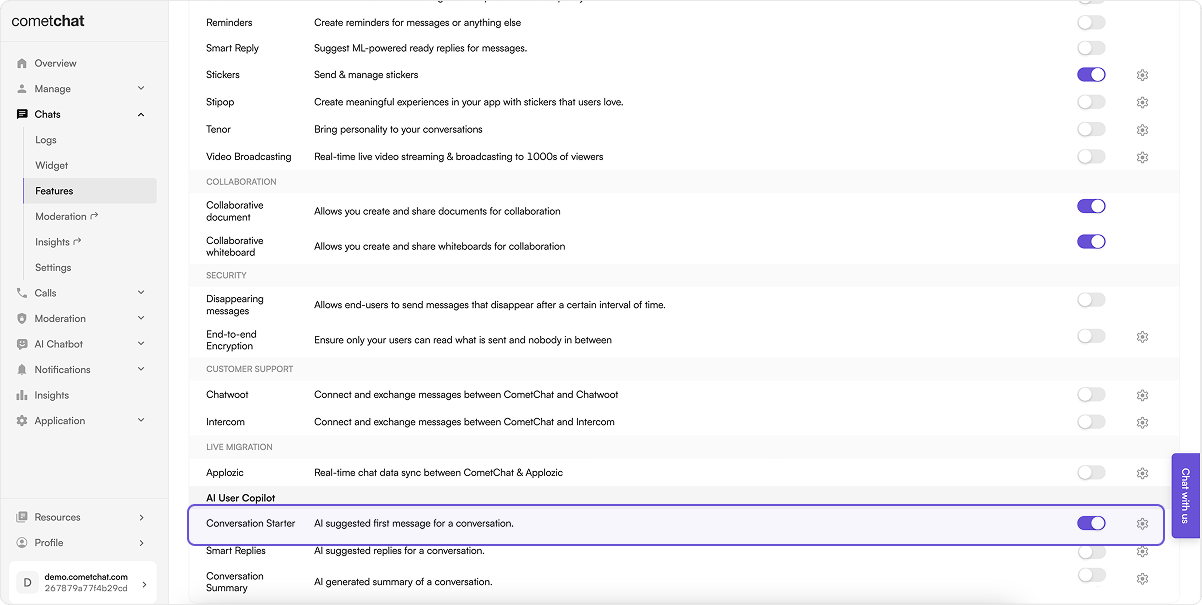
When a user initiates a new chat, the UI kit displays a list of suggested opening lines that users can select, making it easier for them to start a conversation. These suggestions are powered by CometChat’s AI, which predicts contextually relevant conversation starter options. For a comprehensive understanding and guide on implementing and using the Conversation Starter, refer to our specific guide on the Conversation Starter. Once you have successfully activated the Conversation Starter from your CometChat Dashboard, passshowConversationStarters to the MessageList component to display the starters in an empty chat.
Smart Replies
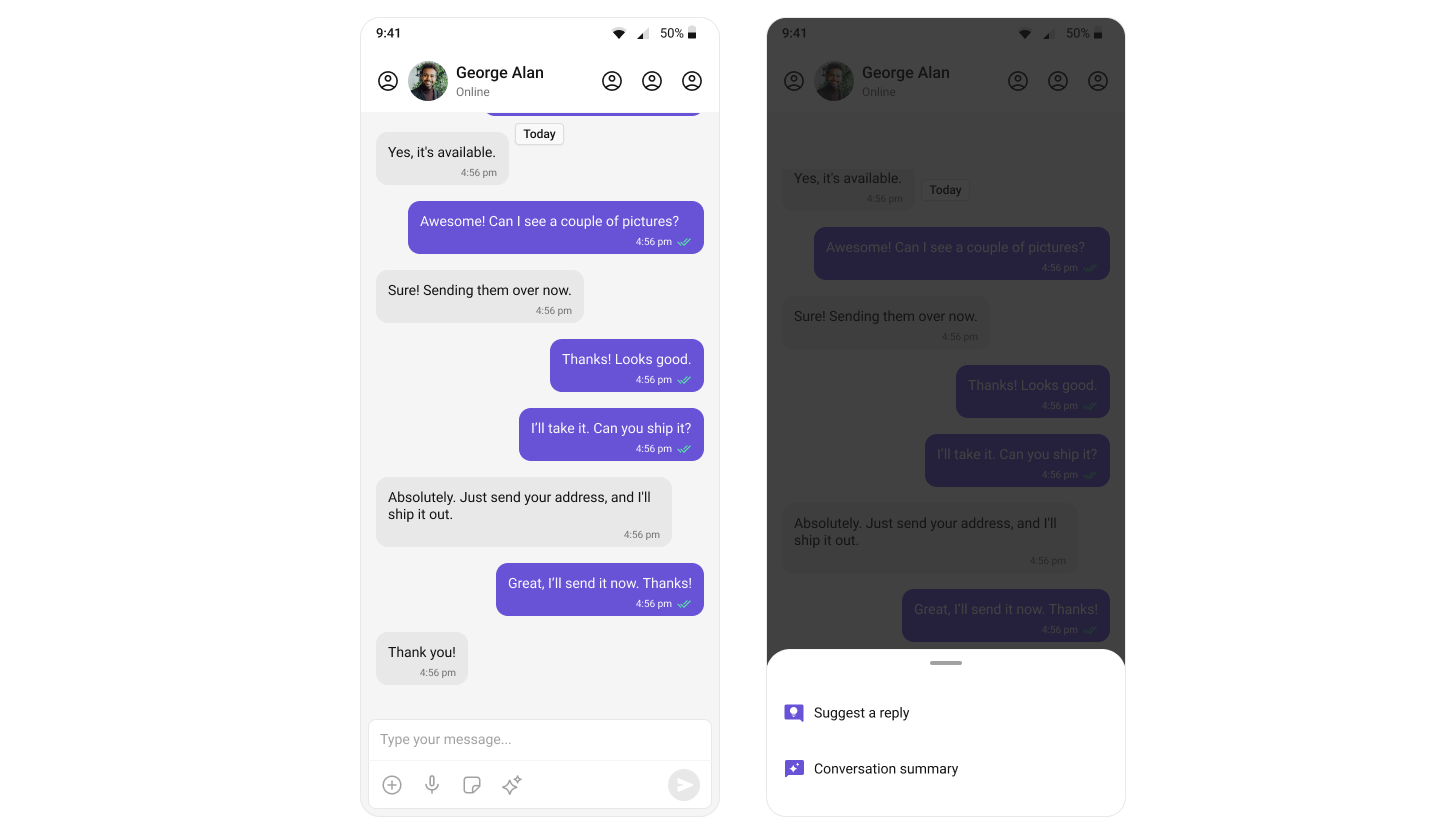
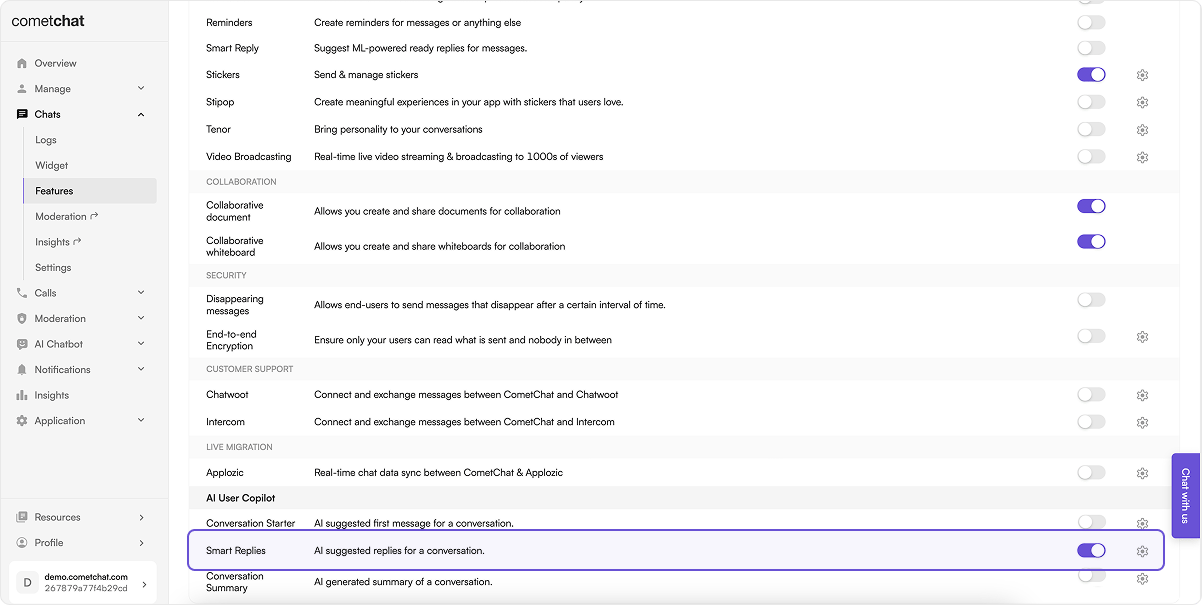
Smart Replies are AI-generated responses to messages. They predict what a user might want to say next by analyzing the context of the conversation, allowing for quicker and more convenient responses on mobile devices. For a comprehensive understanding and guide on implementing and using Smart Replies, refer to our specific guide on the Smart Replies. Once you have successfully activated the Smart Replies from your CometChat Dashboard, passshowSmartReplies to the MessageList component. Smart reply chips appear above the composer after a message is received.
Conversation Summary
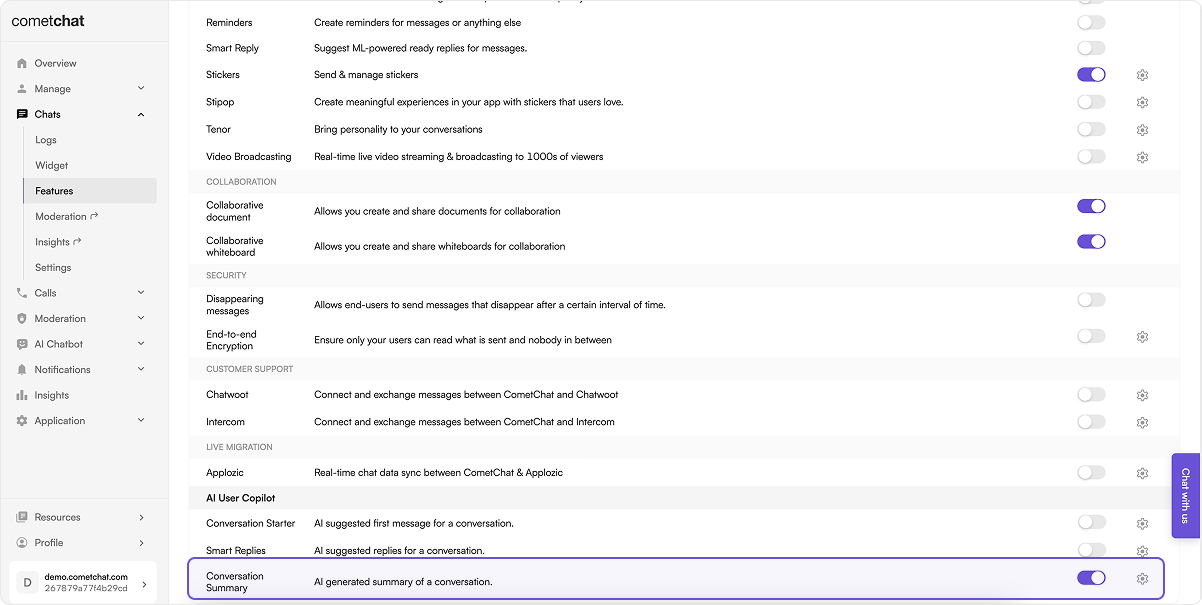
The Conversation Summary feature provides concise summaries of long conversations, allowing users to catch up quickly on missed chats. This feature uses natural language processing to determine the main points in a conversation. For a comprehensive understanding and guide on implementing and using the Conversation Summary, refer to our specific guide on the Conversation Summary. Once you have successfully activated the Conversation Summary from your CometChat Dashboard, passshowConversationSummaryButton to the MessageHeader component. A summary button appears in the header’s overflow menu (⋮), and tapping it slides a summary panel in above the composer.